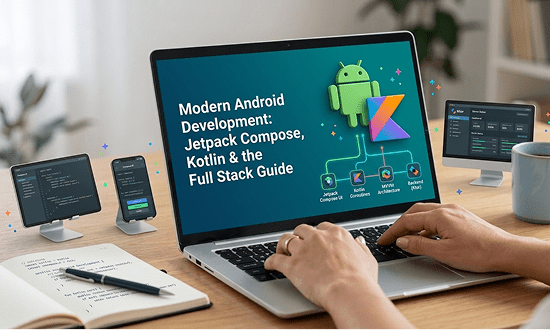
Are you ready to unlock the power of Flutter and take your business to new heights? In today's digital age, having a strong online presence is crucial for success. And…
Flutter has come a long way since its early days as a mobile-first framework. In 2026, it has grown into a full-stack UI platform that lets teams ship apps across…
This feature is come up with Android 4.2 JellyBean. Hope you got 4.2 update in your device. I can explore such features in Nexus 7.
Now, What exactly DayDream feature is about?
Android – DayDream
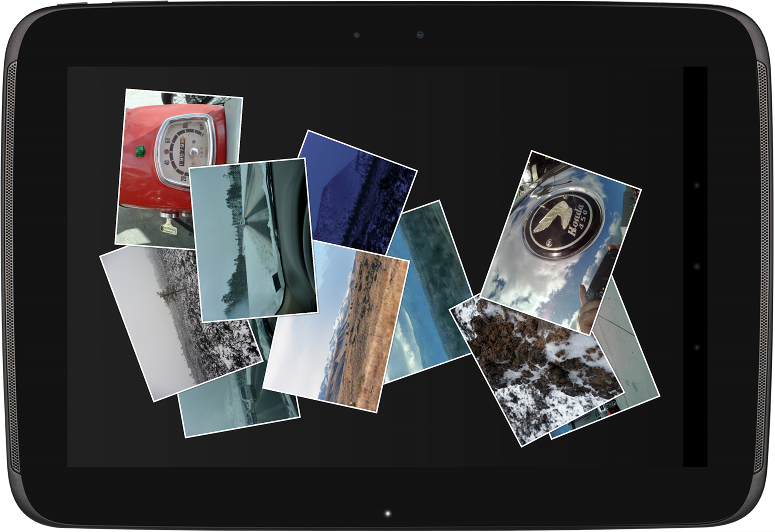
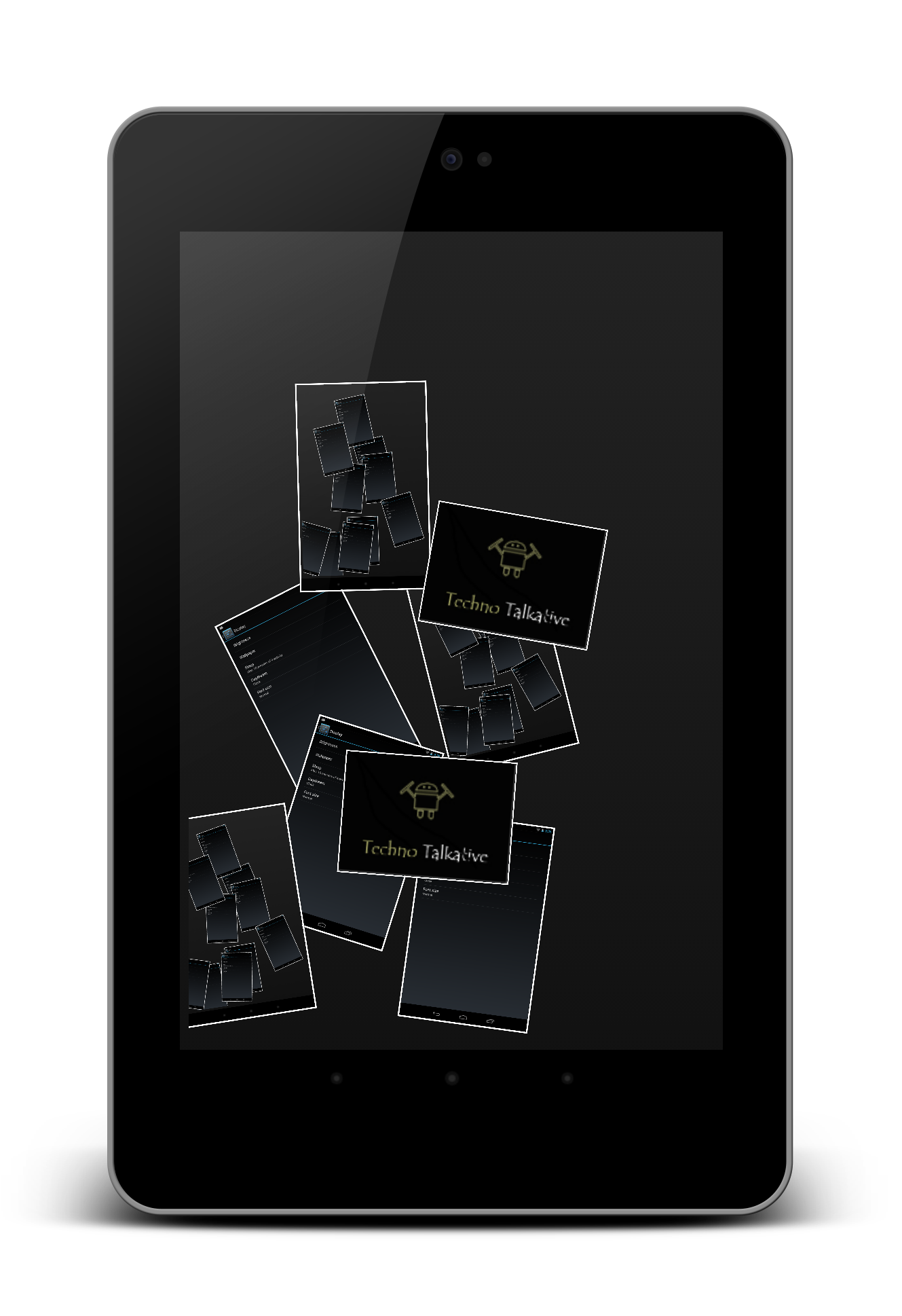
Daydream is an interactive screensaver mode that starts when a user’s device is docked or charging. In this mode, the system launches a daydream – a remote content service provided by an installed app – as the device screensaver.
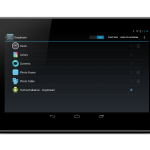
A user can enable Daydream from the Settings -> Display -> DayDream and then choose the daydream to display.
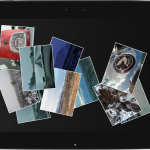
Daydreams combine the best capabilities of live wallpapers and home screen widgets, but they are more powerful. They let you offer the any kind of content in a completely new context, with user interactions such as flipping through photos, playing audio or video, or jumping straight into your app with a single touch.
Because daydreams can start automatically when a device is charging or docked, they also give your app a great way to support new types of user experiences, such as leanback or exhibition mode, demo or kiosk mode, and “attract mode” – all without requiring special hardware.
Capturing photo of the screen and showing it to friend/client/fans for the some purpose like Requirement understanding, explaining about some screens, screen designs or any else. Actually i was surprised about to capture screens for my one of the article i supposed write today, i wasn’t knowing how to capture screenshot, so i have explored web and got to know the tricks but simple step. Its as easy as capturing screenshot in Samsung Galaxy S, Galaxy Nexus.
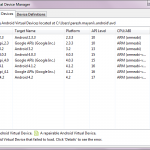
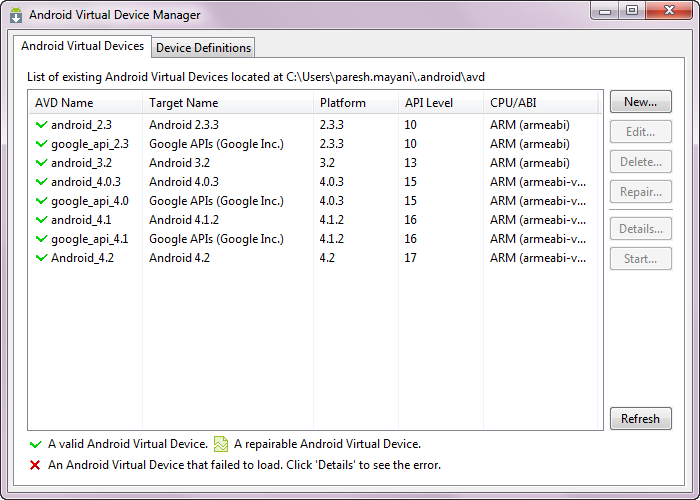
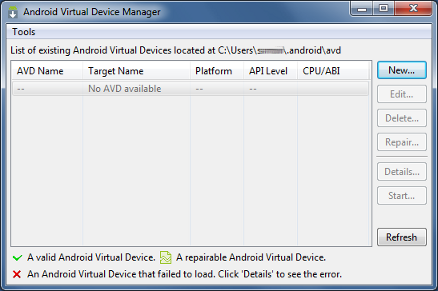
I just updated my ADT with 21.0.0 and i got to see new feature available in Android Virtual Device Manager window, going to explore it here. One of the interesting moment for me is its not well documented yet on Developer.Android.com other than ADT Plugin 21.0.0, here they have only included only about the changes they included in AVD Manager window.
Yeh....You are listening right TechnoTalkative is 1 year old now, its hosted on the same day a year back. During the span of 1 year, i have written 53 useful…
Yesterday, Android developers has published new training class for Adding Animations in Android app, which quickly gets you up to speed on implementing common animations and transitions in your app with the new-ish android.animation APIs.
It covers basics like crossfades (dissolves), screen slides with ViewPager, card flips, zooms (although nothing on API 16 ActivityOptions yet), and automatic layout change animations.
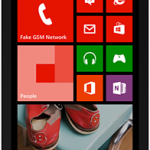
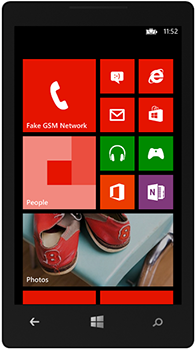
Windows phone 8 is the next generation of Windows Mobile phone operating system. Its codename is Apollo, it has just released on 29th october 2012 (3 days back).