
Most teams meet lock task mode late. The app is built, the hardware is chosen, someone has already set up a few dozen tablets, and then a requirement arrives: the device should run this app and nothing else. At that point you discover that one of the decisions you needed to make was made for you weeks ago, and undoing it means wiping every unit.
This is a walkthrough of how single-app lockdown actually works on Android, which APIs do what, and why the provisioning step is the one that catches people out.
Screen pinning and lock task mode are the same call
Both routes go through Activity.startLockTask(). What separates them is whether your package has been allowlisted.
If it hasn’t, calling startLockTask() gives you screen pinning: the user sees a confirmation prompt and can exit with a gesture. That is useful for one supervised session and no use at all on a device you will not see again.
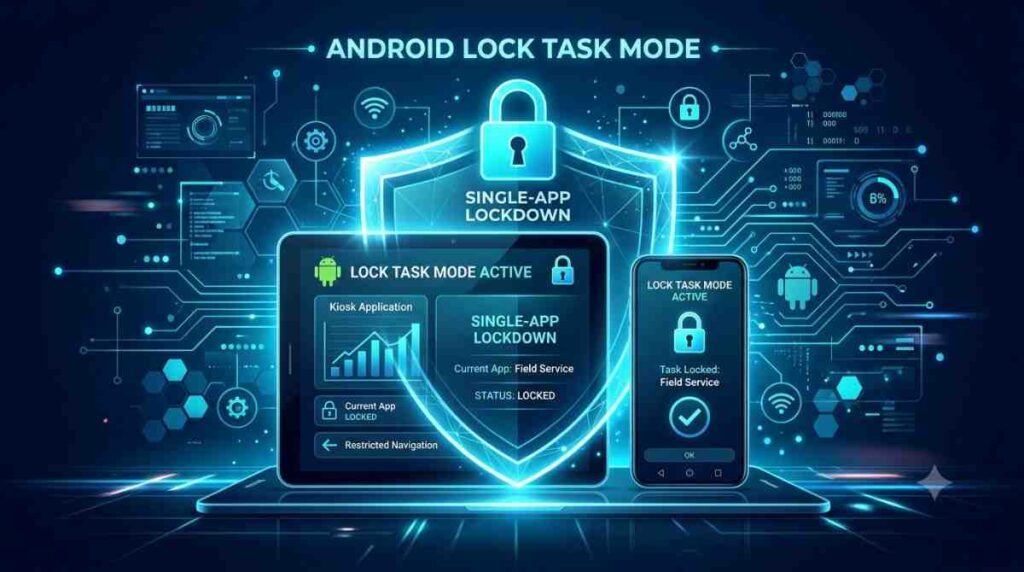
If the package is allowlisted by a device policy controller, the same call puts the activity into lock task mode proper: no confirmation prompt, no exit gesture, and the state survives a reboot.
The check is explicit, and Google’s own lock task mode documentation spells out the fallback behaviour:
override fun onResume() {
    super.onResume()
    if (dpm.isLockTaskPermitted(context.packageName)) {
        activity.startLockTask()
    } else {
        // Not allowlisted. Calling startLockTask() here would put the
        // activity into screen pinning mode instead.
    }
}
If you are testing on a device you set up by hand and lock task mode behaves like screen pinning, this is why.
Writing the allowlist
The allowlist is set by a DPC administering a fully managed device, available since Android 5.0 (API 21):
private val KIOSK_PACKAGE = "com.example.kiosk"
private val PLAYER_PACKAGE = "com.example.player"
private val APP_PACKAGES = arrayOf(KIOSK_PACKAGE, PLAYER_PACKAGE)

val dpm = context.getSystemService(Context.DEVICE_POLICY_SERVICE)
        as DevicePolicyManager
val adminName = getComponentName(context)
dpm.setLockTaskPackages(adminName, APP_PACKAGES)
You can allowlist more than one package, which matters more often than people expect. A kiosk that hands off to a media player, or an app that needs a separate signature-capture activity, needs both in the array. This is what multi-app kiosk mode means in practice, as opposed to locking a device to a single activity.
getLockTaskPackages() reads it back.
Entering and leaving
On Android 9.0 (API 28) and above, a DPC can push any app into lock task mode without that app containing a single line of lock task code:
val options = ActivityOptions.makeBasic()
options.setLockTaskEnabled(true)

val launchIntent = context.packageManager.getLaunchIntentForPackage(KIOSK_PACKAGE)
if (launchIntent != null) {
    context.startActivity(launchIntent, options.toBundle())
}
That is worth knowing if you are integrating a third-party app you cannot modify.
Below API 28, the app has to call startLockTask() itself, from onResume(), because the activity must already be in the foreground. There is also a manifest route:
<activity android:name=".KioskActivity"
          android:lockTaskMode="if_whitelisted" />
Leaving is asymmetric and this trips people up. Activity.stopLockTask() only works for the activity that started it. The DPC can force an exit remotely by calling setLockTaskPackages() with the package removed from the array, which works on Android 6.0 (API 23) and later. On 5.0 and 5.1 removing the package does not stop lock task mode at all.
One timing detail: do not start lock task mode while the keyguard is up. Check with KeyguardManager and start from a lifecycle callback after unlock.
Deciding what stays on screen
setLockTaskFeatures() arrived in Android 9.0 and controls what system UI remains available. Anything you do not pass in the flags is disabled:
dpm.setLockTaskFeatures(
        adminName,
        DevicePolicyManager.LOCK_TASK_FEATURE_HOME or
              DevicePolicyManager.LOCK_TASK_FEATURE_OVERVIEW)
The constants:
| Constant | Effect |
| LOCK_TASK_FEATURE_HOME | Shows the Home button. Does nothing unless a launcher is allowlisted. |
| LOCK_TASK_FEATURE_OVERVIEW | Shows the Overview button. Requires Home to be enabled too. |
| LOCK_TASK_FEATURE_GLOBAL_ACTIONS | Long-press power menu. |
| LOCK_TASK_FEATURE_NOTIFICATIONS | Status bar icons, heads-up notifications, notification shade. Requires Home. |
| LOCK_TASK_FEATURE_SYSTEM_INFO | Status bar system info: connectivity, battery, sound. |
| LOCK_TASK_FEATURE_KEYGUARD | Any lock screen set on the device. |
| LOCK_TASK_FEATURE_NONE | Disables all of the above. |
GLOBAL_ACTIONS is the only feature enabled if you never call setLockTaskFeatures() at all, which surprises people who assumed the default was nothing.
LOCK_TASK_FEATURE_KEYGUARD is the one to think about hardest. On a wall-mounted display or a public kiosk it blocks the people who are supposed to use the device. On a handheld a warehouse worker carries home by accident, it is the only thing protecting what is on the screen.
Changes take effect immediately if the device is already in lock task mode, and persist across subsequent entries.
The provisioning problem
Everything above assumes a DPC administering a fully managed device. Getting there is the step that cannot be undone.
Android’s provisioning documentation is unambiguous: “The device owner can be set only from an unprovisioned device.” A device counts as provisioned the moment Settings.Secure.USER_SETUP_COMPLETE has ever been set. The same page states that “DPC setup can’t be started after the end of the setup wizard” and that “The device must be factory reset before it can be provisioned again.”
In practice this means the window is the setup wizard, through QR code, NFC, or zero-touch enrolment. On a development device you can use adb on a freshly reset handset with no accounts added:
adb shell dpm set-device-owner com.example.dpc/.AdminReceiver
Add a Google account first and that command fails.
So the sequence matters more than the code. If a hundred tablets have been unboxed, signed in, and handed out, converting them to a locked single-app configuration means collecting and wiping all hundred. The decision belongs at the procurement stage, next to the hardware choice.
If you target Android 12 or above, there is one more requirement: your DPC must implement handlers for ACTION_GET_PROVISIONING_MODE and ACTION_ADMIN_POLICY_COMPLIANCE. Without them, provisioning fails outright.
Before you ship
A few things that only show up in the field.
Overlay windows. Lock task mode does not stop another app drawing over yours. Block it when entering:
override fun onLockTaskModeEntering(context: Context, intent: Intent) {
    val dpm = getManager(context)
    val admin = getWho(context)
    dpm.addUserRestriction(admin, UserManager.DISALLOW_CREATE_WINDOWS)
}
Remove the restriction on exit.
Know the state. DeviceAdminReceiver.onLockTaskModeEntering() and onLockTaskModeExiting() give you the transitions. For a point-in-time check, compare ActivityManager.getLockTaskModeState() against LOCK_TASK_MODE_LOCKED. isInLockTaskMode() has been deprecated since API 23.
Have a way out that is not the app. If the only exit is stopLockTask() inside your own activity, then a crash loop, a bad release, or an expired certificate turns every device into a support visit. The remote path through setLockTaskPackages() exists precisely for this, and it only helps if your DPC can still reach the device. Test the recovery path on real hardware before the fleet ships.